
Prerequisites
A Linux server with Docker connected and approved through the agent, where your organization allows installing services. Without one, the WordPress and PHP pages point you to Infrastructure.
Create a site
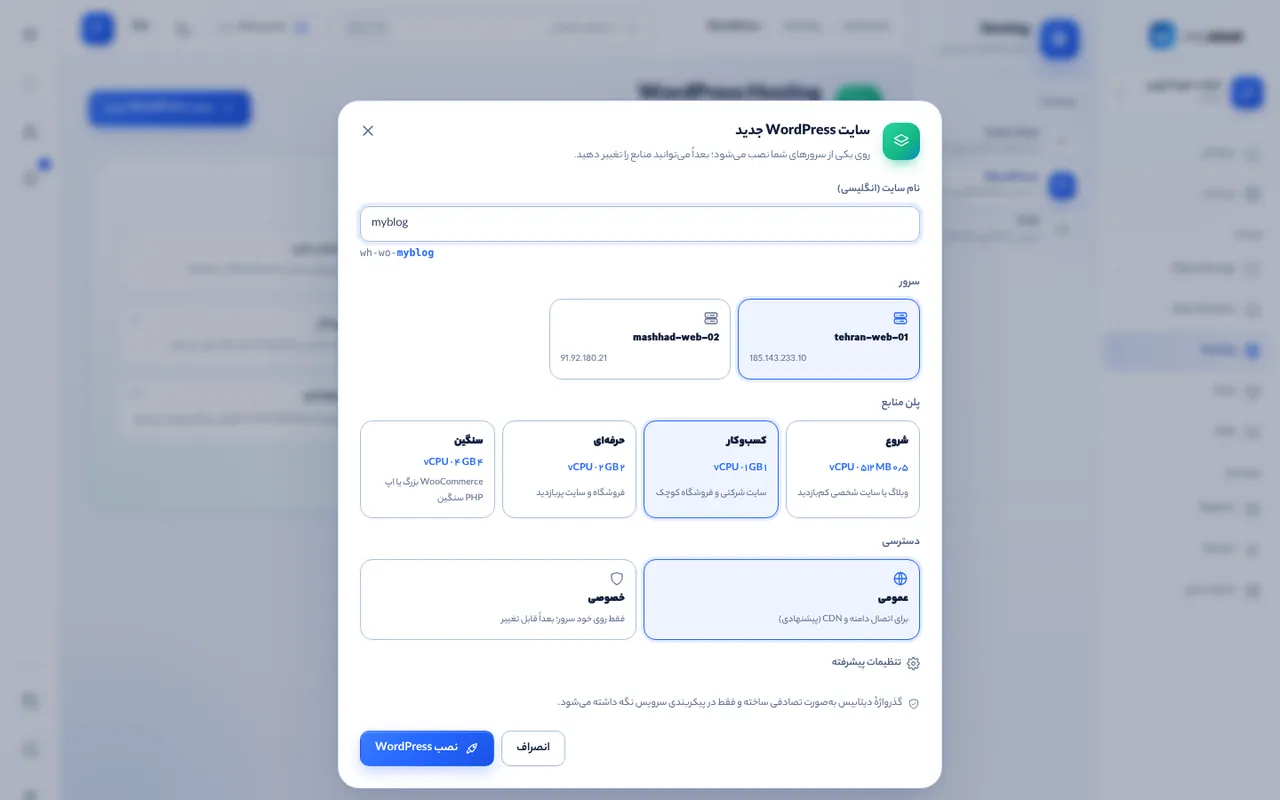
In Hosting → WordPress (or PHP) click “New site”. Choose an English name, the server, a resource plan (Starter, Business, Pro or Max) and access. Public opens the site port on the server’s public IP so the CDN can reach it; Private keeps it on the server. Database passwords are generated randomly.
Finish the WordPress install
After a few minutes the site is running. Open the WordPress dashboard and create the language, title and admin account. Plugins, themes, media and the database live on persistent volumes.
Deploy PHP code
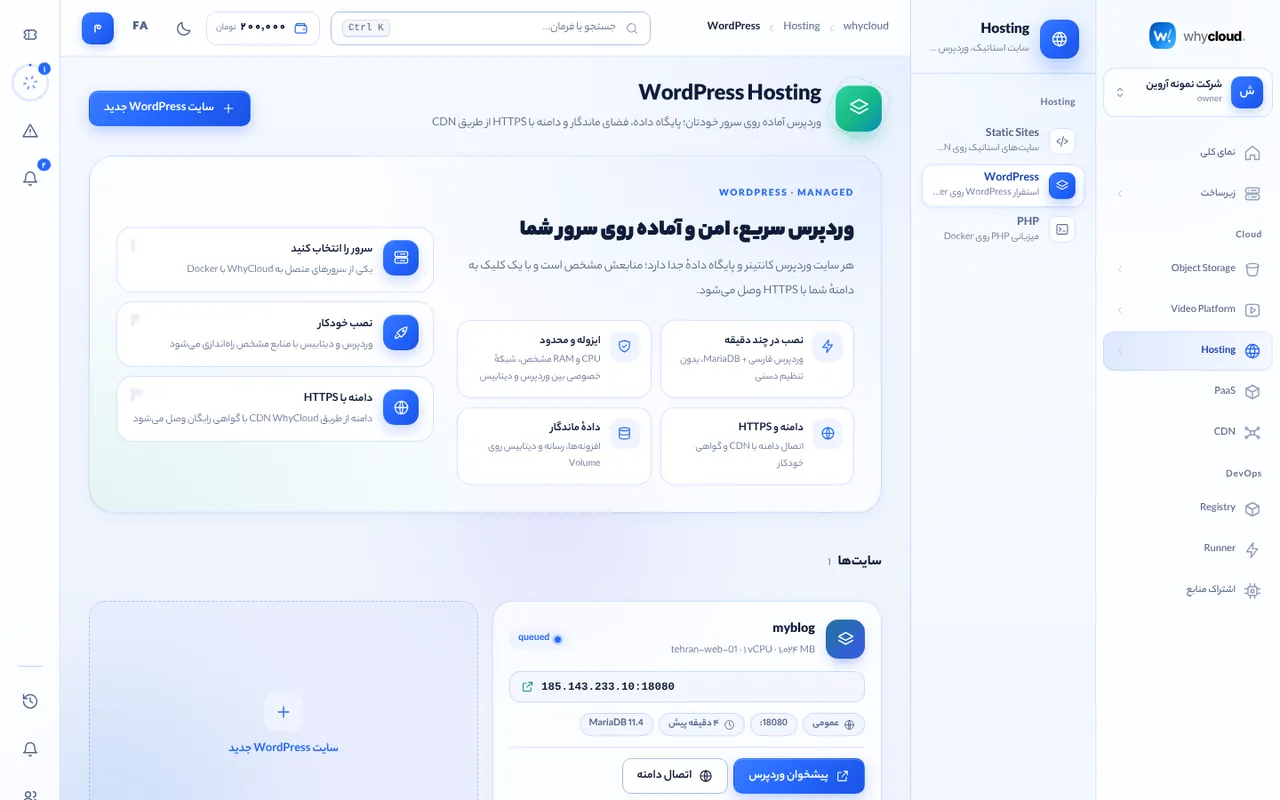
When creating the site or with “Update code”, give an HTTPS link to a ZIP — for GitHub use Code → Download ZIP or https://github.com/<user>/<repo>/archive/refs/heads/main.zip. A single top-level folder is unpacked into the web root and the uploads folder is kept between deploys. Without code a PHP starter page is shown.
Domain and HTTPS
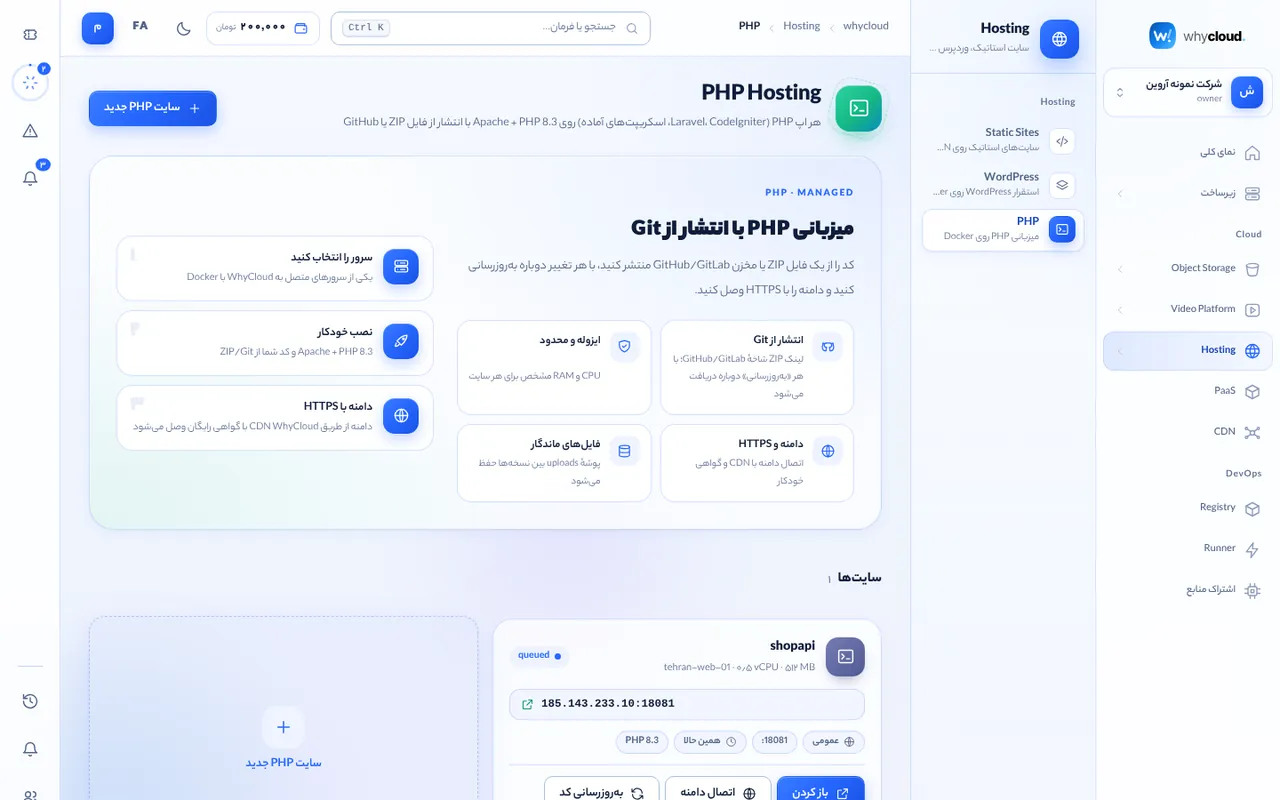
Click “Connect domain” on the site card and enter a domain or subdomain. A CDN site pointing at the server IP and port is created and its page opens so you can set the CNAME or name servers. SSL is issued automatically. In WordPress, change the site address to https://your-domain under Settings → General once the domain is active.
Logs, terminal and resources
“Logs and management” opens the app in PaaS: container logs, terminal, stop/start, resource changes and rollback. Each site is an isolated container with CPU and RAM limits; the WordPress database has no port outside the site’s private network.