Create a site and migrate
In Hosting → Static Sites click "New site", name it and choose where the content comes from: a ZIP file or folder (your current site export or the build output of Hugo, Astro, Next.js export, Jekyll…), the current site address (pages, styles, scripts, images and fonts of that domain are copied and absolute links made relative), a GitHub or GitLab repository (branch, output folder and a read-only token for private repositories), or a starter template. index.html is the home page and 404.html the not-found page.
Versions and publishing
Every save (editor, upload or import) is a version with a message, author and the list of changed files. Saving is not publishing: visitors see the published version until you click Publish (or turn on auto-publish). The Versions tab compares any file line by line, previews or republishes older versions, and Restore creates a new version with old content.
Editor and live editing
The code editor has a file tree, tabs, autocompletion, search, formatting and syntax checking: unclosed or unmatched tags, open quotes, duplicate ids, images without alt and CSS, JavaScript and JSON syntax errors (inline ones too) are flagged as you type. The preview next to the code shows unsaved changes at desktop, tablet or phone size. With Live edit click text in the preview and type, or click an image to pick another; the change is applied to the code. Ctrl+S saves and Ctrl+P opens a file; drafts survive a closed tab.
Domains
On the Domains tab pick one of your CDN domains with any subdomain (www, or @ for the apex), or enter a new domain. For a new domain the required records (ownership TXT and CNAME, or ALIAS for the apex) are shown with copy buttons; after adding them at your DNS provider click Check or wait a few minutes. A site is served on a domain only once ownership is verified and DNS really points to the whycloud CDN. Domains on whycloud DNS are configured automatically. Several domains can serve one site; the others redirect to the primary domain.
Speed and smart caching
Sites are served from whycloud CDN edges over HTTPS with brotli/gzip and long cache lifetimes. Links to CSS, JS and images are versioned automatically, so browsers never see stale files. Publishing purges only the pages and files that changed; the rest of the site keeps being served from cache.
SEO and Google Tag
sitemap.xml and robots.txt (when the site has none), canonical URLs and redirects to the primary domain are automatic. The SEO tab shows a score and issues such as missing or duplicate titles and descriptions, broken links, images without alt or too heavy, and missing Open Graph, with the affected pages. In Settings enter a Google Tag Manager (GTM-…) or Google Analytics (G-…) ID and the Search Console verification code; one switch turns all Google tags on or off on every page. For custom redirects add a _redirects file (e.g. /old /new 301).
Security
Hidden files such as .git and .env are never served, HTTPS and HSTS are on by default and framing by other sites is blocked (configurable). A whole-site password is available for staging or private sites.
Analytics
Cookie-less and without third parties: page views, visitors, people online, top pages, referrers, countries, devices, browsers, hours, 404 addresses and real-user page speed (LCP, INP, CLS, TTFB).
Pricing
Two things are metered: each site per hour and the size of site files including all versions (identical files across versions count once). Visitor traffic is billed as CDN traffic. Rates are shown on the Billing page.
WordPress and PHP
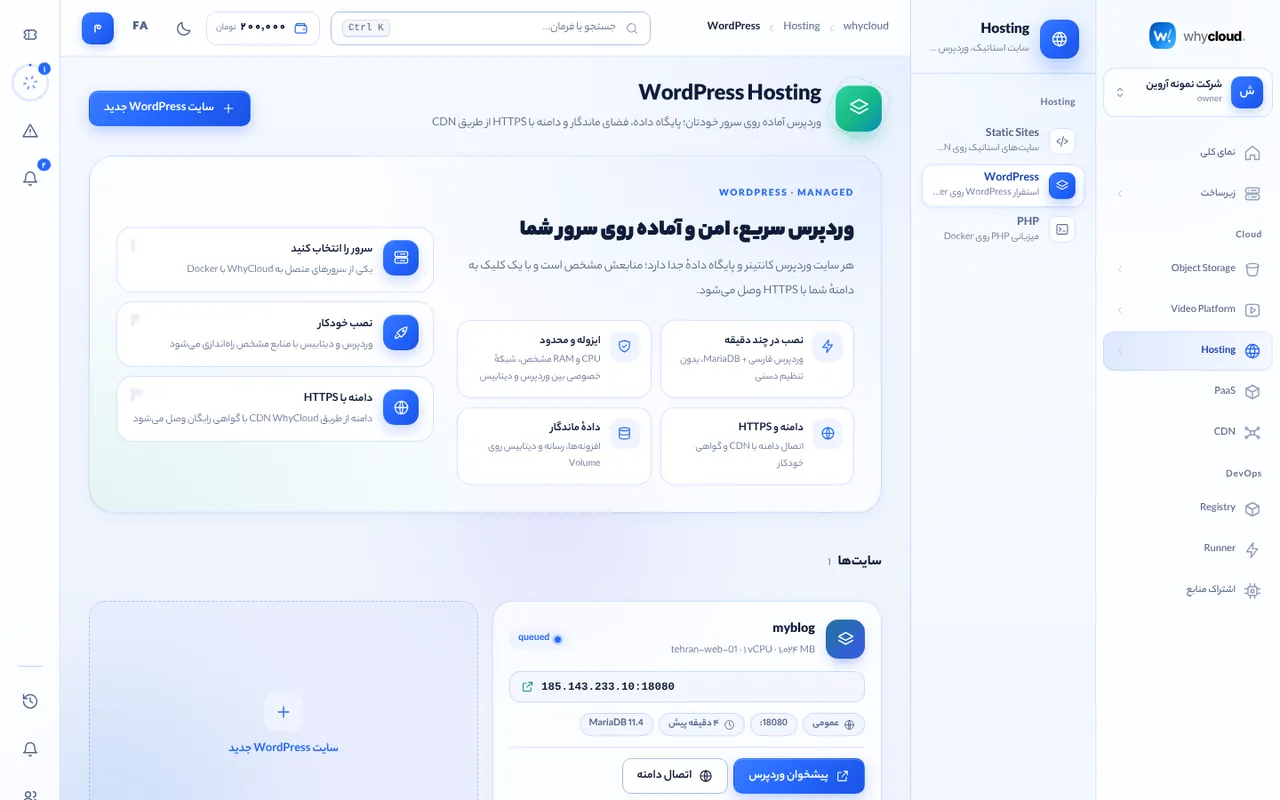
Besides static sites, Hosting → WordPress or PHP installs WordPress or a PHP app on your own server. See “Managed WordPress and PHP”.